Gigabit Internet now available in 6 urban & suburban cities and growing!
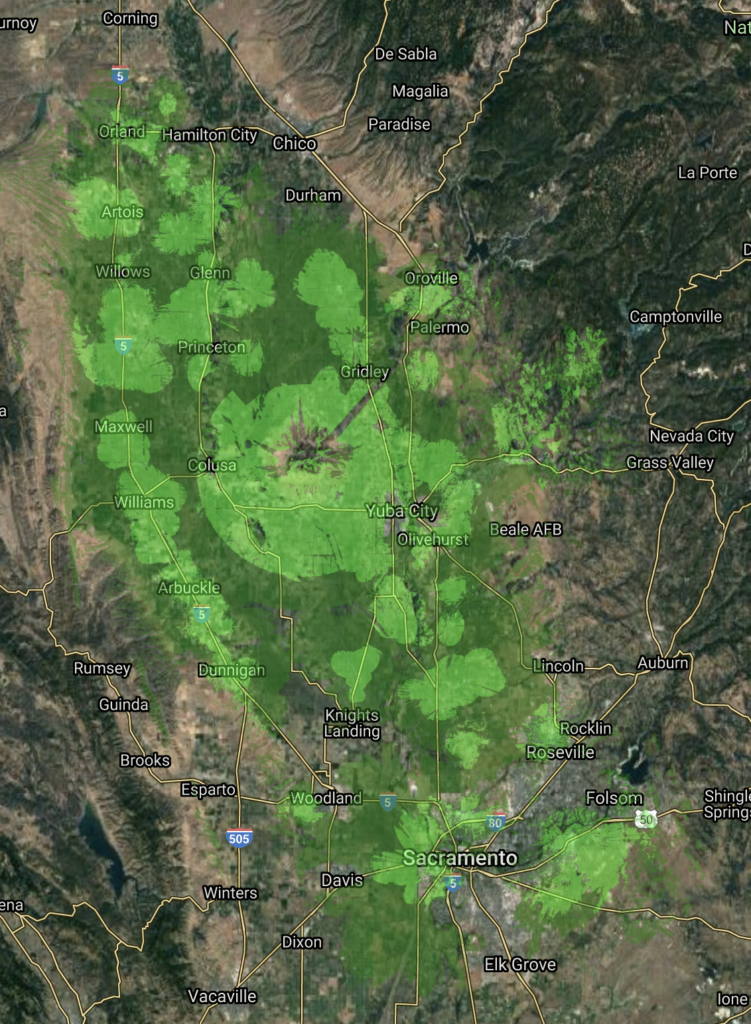
We help entrepreneurs, influencers, moms, students, gamers and more accomplish what they want to do online regardless of where they live or work. Even if it’s in areas left behind by big Internet.
No Contracts
Internet service so good you won’t ever want to quit so who needs contracts.
Real Human Support
The opposite of big corporate cable and telephone company poor support.
True Unlimited Data
No longer worry about being shaped to slow speeds or paying overage fees.
Speeds up to
1000Mbps
*Not all internet speeds available in all areas. Urban areas typically have higher speeds available than rural areas but we are always upgrading.
Plans Starting at
$40/mo
*Pricing varies depending on Internet plan and location. Higher speeds have higher prices and urban areas have lowest pricing.
Try our Internet risk-free for 30 days with our “No Regrets” unconditional guarantee!
*If you are not 100% satisfied with our internet service in the first 30 days we will refund 100% of all monies paid while testing our internet.
Top rated because of our commitment to great service
What’s our secret? We are obsessed with trying to provide the best local support and to treat our customers like how we would like to be treated.
I've had frontier and wasn't very happy with my Internet or service through them, I have sense moved too Succeed and my service is way faster and consistent. I had a very amazing service Tech named Chris come to my home and was very professional, friendly, and fast working answered any questions so happy I switched, thank you Chris!
I was told they were running a bit late which was greatly appreciated. When Will arrived he suggested changes that required a lot more work rather than try a quick fix. Very professional. Succeed has been an excellent provider over our last one.
LOCAL FRIENDLY SUPPORT from local staff with a locally owned and operated ISP.
FAST SPEEDS up to Gigabit depending on area so you can do everything you want to do on the internet.
UNLIMITED DATA now available on most internet plans for no overage fees.
NO THROTTLING so your internet is always the same fast speed.
LOW LATENCY for low lag gaming and interactive applications.
NO BUFFERINGHD & 4KVIDEO for frustration free TV and Movie streaming and glitch free web business meetings.*
NO CONTRACTS OR CREDIT CHECKS allowing for easy 2 minute signup online and you also get a 30 day satisfaction guarantee for no risk.
PROFESSIONAL INSTALLATION at your home or business including outdoor wireless gear, thin ethernet cable, and indoor WiFi 6 mesh system (optional).
SECURE highest grade data encryption on all wireless links.
BONUS: DoS(Denial of Service) PROTECTION from hackers and harassers flooding your internet connection included on all residential & business Internet services.
*TV streaming content services are available separately from third parties